Mom and dad moved into assisted living a few months before dad fell and broke his hip. With dad in the hospital, mom struggled, and couldn’t keep up with what was happening, when we were coming to visit, or how to get in touch with us when she had questions. So, I tech’d up some help…
iPad for Communication
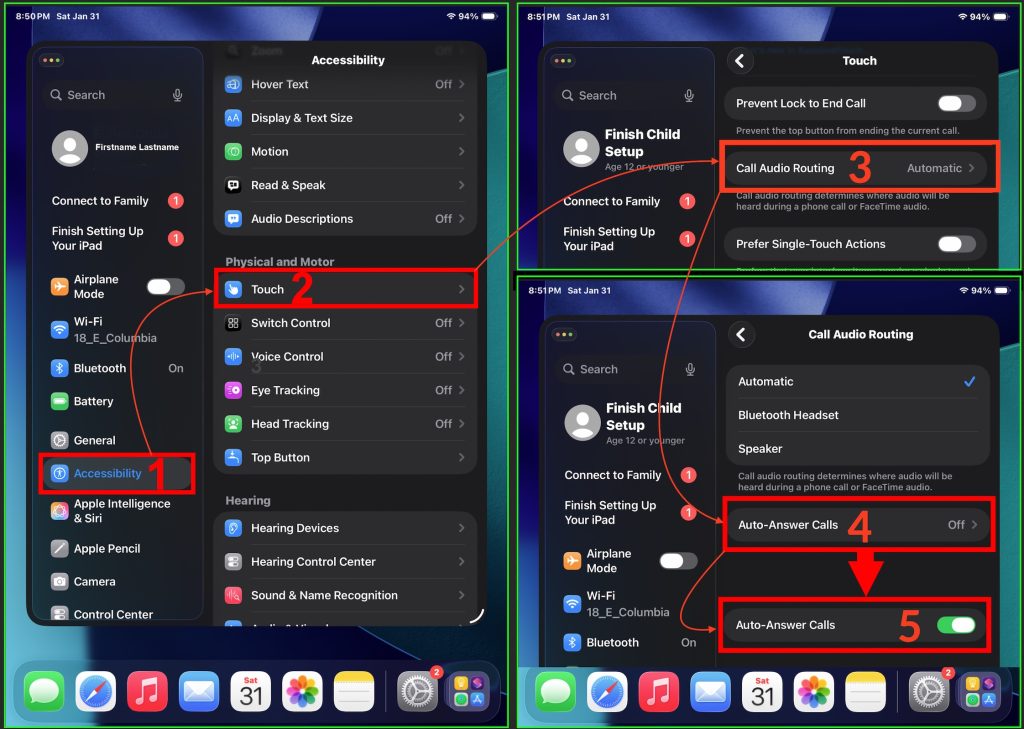
Mom has trouble managing a smart phone – even the simplified Lively phone designed for older adults. I had a spare iPad lying about, so I created an Apple ID for her, added my sister and myself as contacts, and set it up to auto-answer FaceTime calls with these steps:
- On the iPad (or iPhone) Navigate to Settings > Accessibility > Touch
- Select “Call Audio Routing.”
- Select “Auto-Answer Calls” to turn on the setting:
Now, when I Face Time mom, the iPad auto-answers the call, so I see her living room. If she is resting in her bedroom, I just call out “Hey mom, are you there?” And she will pop her head around the corner with an adorable smirk and with faux snark, ask what I want.
Set up one-tap home screen icons to launch FaceTime calls
That setup worked great for me to call mom, but she still had trouble calling me. So, I created three Shortcuts; one each to call me, my sister, and mom’s sister. Each is launched by tapping a headshot picture of the contact located on the iPad’s Desktop. This way, if she wants to call me, she just taps my face (on the iPad) and my phone starts ringing.
To set this up, open Shortcuts, select FaceTime, and the desired contact. At this point, take a minute to tap the down arrow to the right of FaceTime in the upper-left corner of the screen, select “Raname” and change it to “Call Paul” (or whatevs). This is what shows under the icon when it sits on the home screen. Then tap the Send-To icon (square with an up-arrow in the middle), and select “Add to Home Screen. On the next screen, I select (or take) a picture of the contact, and tap “Add.” That’s it. Now mom can tap any of the contacts on her home screen to start a FaceTime call with them.
I wish I had a picture of the first time she clicked my sister’s picture and saw her face pop up on the screen. She looked over to me, with her jaw dropped, asking what kind of magic this was that she and her daughter could see and talk to each other like this.